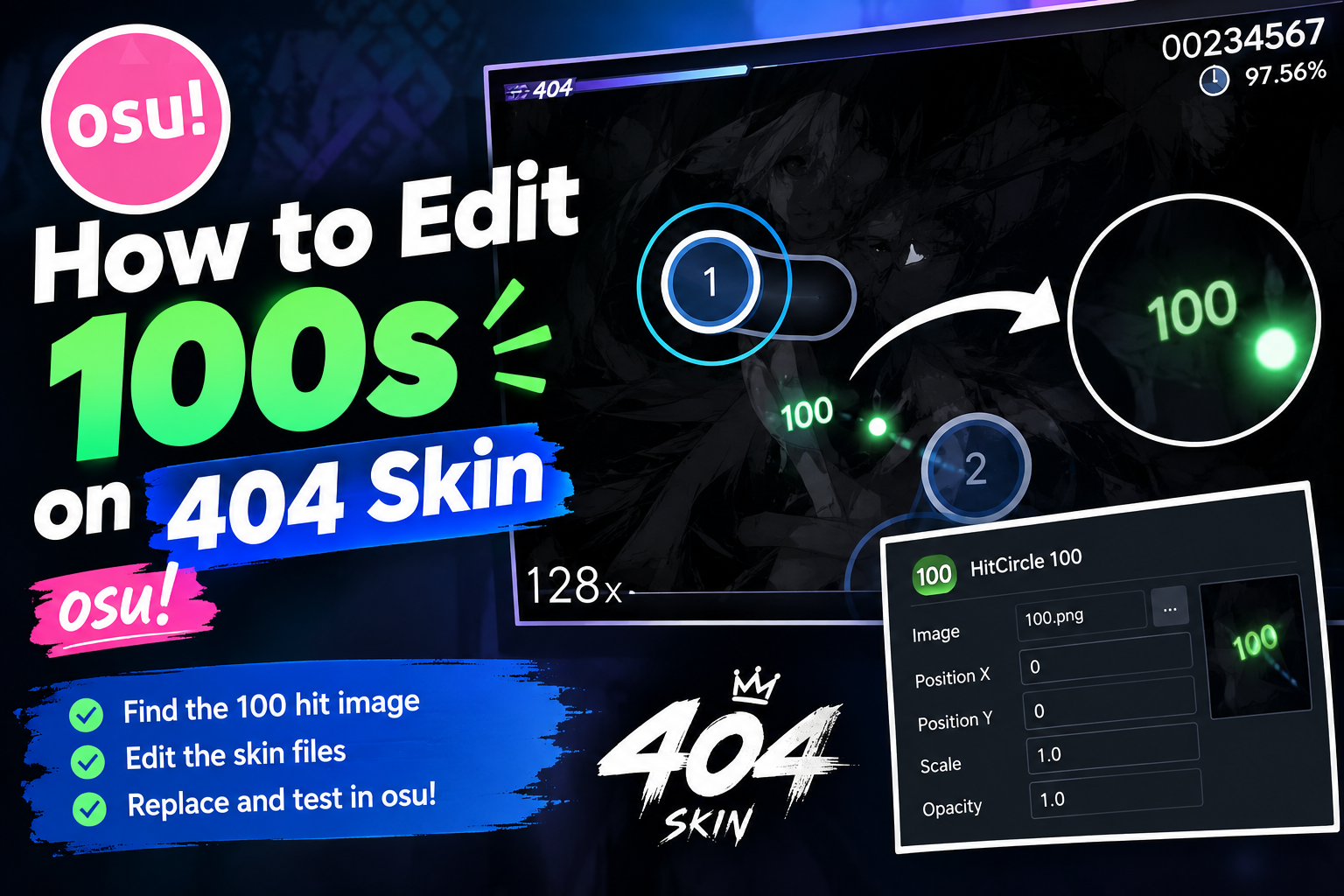
How to edit 100s on 404 skin osu
How to Edit 100s on 404 Skin osu!
If you want to know how to edit 100s on 404 skin osu!, you can easily change the 100 hit result and give your skin a personal look. The process is simple, even if you are new to osu! skin editing. You only need to find the correct skin file, edit the image, and put it back into your 404 skin folder.
The osu! skin system allows players to customize different images used during gameplay. You can learn more about skinning from the official osu! skinning guide.
What Are 100s in 404 Skin osu!?
In osu!, a 100 is one of the hit results that appears when you hit a note. It has a lower score than a 300 but a higher score than a 50 or a miss.
The 100 result is shown as an image from your current skin. This means you can change its design, color, size, or overall style.
If you are using the 404 skin, editing this image is a simple way to make your gameplay screen look different.
How to Edit 100s on 404 Skin osu!
To start editing the 100 result, you first need to open the folder of your active osu! skin.
Open osu! and go to:
Options → Skin → Open Current Skin Folder
This will open the folder containing the files used by your current skin.
Make sure that the 404 skin is selected before opening the skin folder. Otherwise, you may edit the wrong skin.
How to Find the 100 Hit Result in 404 Skin osu!
Inside the 404 skin folder, look for the hit result files.
The file you usually need is:
hit100.png
This image controls the appearance of the 100 result.
If you cannot find it quickly, use the Windows search option inside the skin folder and search for hit100 or 100.
Before changing anything, it is a good idea to make a copy of the original file. This gives you a backup if you want to restore the original design later.
Best Image Editor for Editing 100s on 404 Skin osu!
You need an image editor to change the 100 image. You can use a simple program such as Paint.NET or a more advanced program such as GIMP or Photoshop.
For beginners, a simple PNG editor is usually enough.
Open hit100.png in your chosen editor and make the changes you want.
You can change:
- Text style
- Font appearance
- Color
- Outline
- Size
- Opacity
- Overall design
Try to keep your new design easy to see. A very bright or complicated image may make the hit result harder to read during a fast beatmap.
How to Change the 100 Design on 404 Skin osu!
Now you can start customizing your 100.
For example, you can use a different color, add a small glow, change the outline, or create a completely new design.
When learning how to edit 100s on 404 skin osu!, it is best to make small changes first. Test each version in the game before making bigger changes.
This helps you find a style that looks good without affecting gameplay visibility.
How to Save Edited 100s as a PNG File
When you finish editing the image, save it as a PNG file.
Keep the original file name:
hit100.png
Do not save it as JPG or another image format if you are replacing the original PNG file.
Also make sure your image editor does not change the file extension automatically.
How to Replace the 100 Image in 404 Skin osu!
After saving your new image, go back to the 404 skin folder.
Replace the old hit100.png file with your edited version.
If Windows asks whether you want to replace the existing file, select Replace.
You can now return to osu! and check your skin.
If the old image still appears, switch to another skin and then select the 404 skin again. This can refresh the skin.
How to Test Your Edited 100 in osu!
Start a beatmap and watch the hit results while playing.
Check whether the new 100 is:
- Easy to see
- The right size
- Clear during gameplay
- Not too bright
- Not blocking other gameplay elements
If you do not like the result, simply edit the PNG again and test another version.
You can repeat this process until you find a design you like.
Common Problems When Editing 100s on 404 Skin osu!
Why Is My New 100 Not Appearing?
First, check that you edited the correct 404 skin folder.
Then make sure the file is named hit100.png and is saved as a PNG.
You should also check that the 404 skin is selected in osu!.
Why Does My Edited 100 Look Too Large or Small?
The size of the image can affect how it looks during gameplay. Open the PNG in your image editor and adjust it carefully.
Always keep a copy of the original file before changing the size.
How Can I Restore the Original 100?
If you do not like your new design, you can restore the backup of the original hit100.png file.
This is why making a backup before editing is useful.
Tips for Better 100s on 404 Skin osu!
When customizing your 404 skin, try to keep the design simple and clear. The main goal is to make the 100 easy to recognize while you are playing.
You can also keep your edited files in a separate folder. This makes it easier to compare different designs and return to an older version.
If you are new to osu! skinning, change one file at a time. This makes it easier to find out which change created a problem.
Final Thoughts on Editing 100s on 404 Skin osu!
Learning how to edit 100s on 404 skin osu! is not difficult. You only need to find the hit100.png file, open it in an image editor, make your changes, save it as PNG, and replace the original file in your 404 skin folder.
Always keep a backup of the original skin file. This lets you quickly return to the original design if your new 100 does not look right.










Post Comment