able PHow to Add Fillable Fields in PDF PDFgear
able PHow to Add Fillable Fields in PDF PDFgear
A PDF is useful for sharing documents but sometimes you need people to enter information directly into it. A fillable PDF makes this easy. Users can type names choose options check boxes and add signatures without changing the original document.
PDFgear provides an online tool that can turn a normal PDF into a fillable form by adding interactive fields.
What Are Fillable PDF Fields?
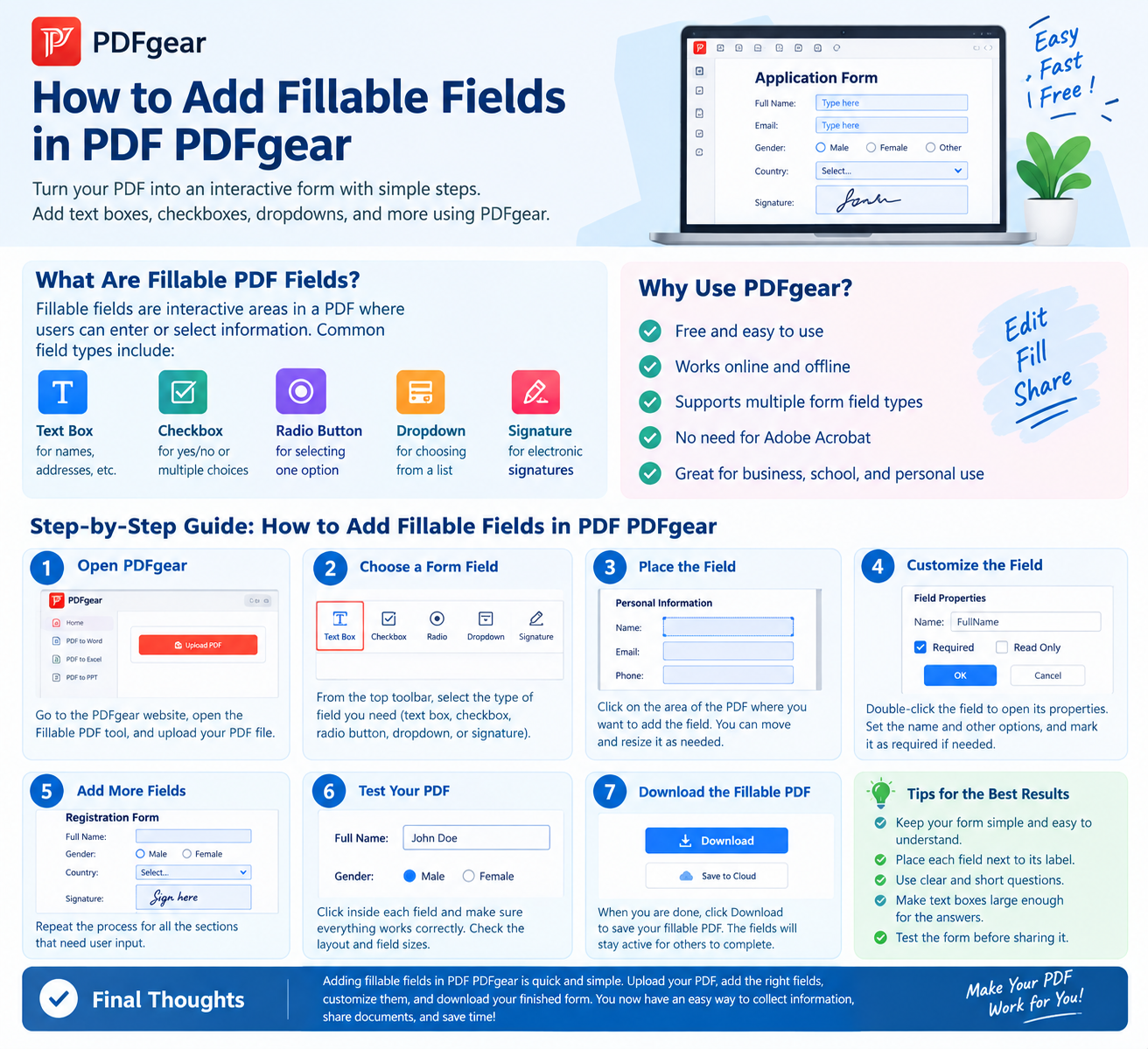
Fillable fields are areas in a PDF where users can enter or select information. Common fields include:
Text boxes for names addresses and other information
Checkboxes for yes/no or multiple choices
Radio buttons for selecting one option
Dropdown menus for choosing from a list
Signature fields for electronic signatures
PDFgear supports several of these form field types.
How to Add Fillable Fields in PDF PDFgear
Follow these simple steps:
Step 1: Open PDFgear
Open the PDFgear online fillable PDF tool in your web browser. Then select the PDF file you want to edit.
Step 2: Choose a Form Field
After opening your PDF look at the top toolbar. Choose the type of field you need such as a textbox checkbox radio button dropdown or signature field.
Step 3: Place the Field
Click on the area of the PDF where you want the field to appear. You can move the field and resize it so it fits the document properly.
Step 4: Customize the Field
You can double-click a field to open its properties. Depending on the field you can change its name and other settings. You can also make certain fields required.
Step 5: Add More Fields
Repeat the process for every part of your PDF that needs user input. For example an application form may need fields for a name phone number address checkboxes and a signature.
Step 6: Test Your PDF
Before sharing the document click inside each field and make sure it works correctly. Check that the fields are in the right places and large enough for the information users need to enter.
Step 7: Download the Fillable PDF
When everything looks correct download the finished PDF. Downloading the file keeps the fillable fields available so other people can complete the form.
Can You Make a Non-Fillable PDF Fillable?
Yes. You can use PDFgear to add interactive fields to a regular PDF turning it into a fillable form. This is useful for applications surveys registration forms and other documents.
Tips for Creating a Good FillDF
Keep your form simple and easy to understand. Place each field next to its label and make text boxes large enough for the expected answer.
It is also a good idea to test the form before sending it to other people. This helps you find misplaced or missing fields.
Conclusion
Learning how to add fillable fields in PDF PDFgear is simple. Upload your PDF select the required form field place it on the page adjust its settings and download the finished document.
With fillable fields a normal PDF can become an easy and useful digital form for work school business or personal use.
Meta Description: Learn how to add fillable fields in PDFgear with simple steps. Add text boxes checkboxes dropdowns and signature fields to your PDF.












Post Comment